---
title: How to View and Verify Property Measurements on Plato
description: Access takeoffs created by SiteRecon within your Plato property to guide audits and inspections.
---
[Skip to content](https://help.siterecon.ai/view-takeoffs-mapped-by-siterecon#main-content)
English - United States
Show submenu for translations

Open main navigation
Close main navigation
- English - United States
Show submenu for translations
- [Contact us](https://meetings.hubspot.com/shubham106/csmproduct)
[Contact us](https://meetings.hubspot.com/shubham106/csmproduct)
Hi, how can we help?
- There are no suggestions because the search field is empty.
1. [SiteRecon University](https://help.siterecon.ai/?hsLang=en-us)
2. [Plato - SiteRecon's Mobile App](https://help.siterecon.ai/plato-siterecons-mobile-app?hsLang=en-us)
3. [Find Your Property](https://help.siterecon.ai/plato-siterecons-mobile-app?hsLang=en-us#find-your-property)
# How to View and Verify Property Measurements on Plato
## Use the Layers panel to assess measurements, verify accuracy, and build confidence in your bids
Accurate measurements don’t just help you price a job, they also help you **justify your bid to prospects** and **avoid costly rework later**. On Plato, you can view layer-wise measurements for each property directly on your mobile device.
#### **What is the Layers Panel?**
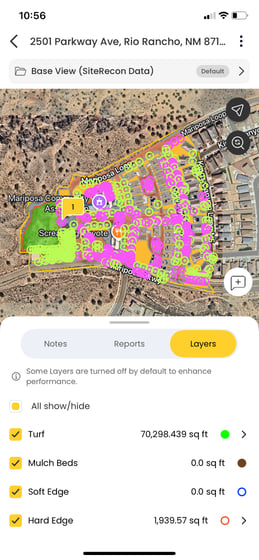
When you open a property in Plato, you’ll see a **panel at the bottom** of the screen. The **Layers** section within this panel shows:
- Measured features on the site
- Parcel information
- Imagery details
- Layer-specific measurements
#### **Steps to View Layer-Wise Measurements**
##### **1. Open Your Property Map**
- From the **dashboard**, locate your property.
- Use [Search or filter existing properties](https://coda.io/d/_d_2vpqlts_F/_suxvJ) if needed.
- Or go directly to the property using [Open your property map](https://coda.io/d/_d_2vpqlts_F/_suIKM)
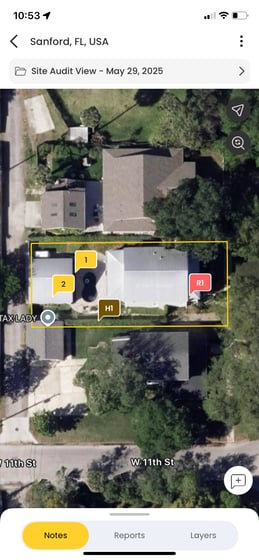
##### **2. Tap the Layers Panel**
- Look for the **Layers icon** in the bottom panel
- Tap to expand the list of features measured on the property
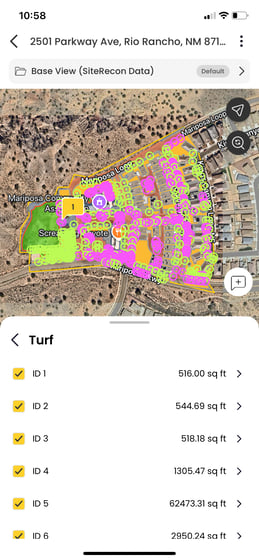
##### **3. Select a Layer to View Measurements**
- Tap any **layer name** to see its measurement details
- You’ll see values such as square footage, linear feet, or counts depending on the feature
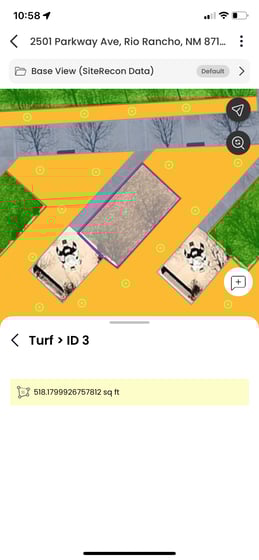
##### **Alternate Option: Tap the Map**
You can also tap directly on a mapped feature (e.g., a turf area or tree icon) to instantly view its measurement data on the screen.
#### **How This Helps You in the Field**
Being able to review exact measurements—layer by layer—means you can:
- **Confirm bid accuracy before sending**
- **Answer client questions on the spot**
- **Avoid miscommunication with production teams**
- **Feel more confident in every site walkthrough**
- [Introduction](https://help.siterecon.ai/introduction?hsLang=en-us)
- [Getting started](https://help.siterecon.ai/getting-started?hsLang=en-us)
- [Order Property Measurements](https://help.siterecon.ai/order-property-measurements?hsLang=en-us)
- [Mapping Tools](https://help.siterecon.ai/mapping-tools?hsLang=en-us)
- [Property Map and Data](https://help.siterecon.ai/property-map-and-data?hsLang=en-us)
- [Sharing and Exports](https://help.siterecon.ai/sharing-and-exports?hsLang=en-us)
- [Plato - SiteRecon's Mobile App](https://help.siterecon.ai/plato-siterecons-mobile-app?hsLang=en-us#main-content)
- [Site Audits (SQA) in Plato](https://help.siterecon.ai/plato-siterecons-mobile-app?hsLang=en-us#site-audits-sqa-in-plato)
- [Notes on Plato](https://help.siterecon.ai/plato-siterecons-mobile-app?hsLang=en-us#notes-on-plato)
- [Find Your Property](https://help.siterecon.ai/plato-siterecons-mobile-app?hsLang=en-us#find-your-property)
- [Using Offline](https://help.siterecon.ai/plato-siterecons-mobile-app?hsLang=en-us#using-offline)
- [Property Views](https://help.siterecon.ai/plato-siterecons-mobile-app?hsLang=en-us#property-views)
- [Plato AI Image Generator](https://help.siterecon.ai/plato-siterecons-mobile-app?hsLang=en-us#plato-ai-image-generator)
- [Using Notes on Web Platform](https://help.siterecon.ai/using-notes-on-web-platform?hsLang=en-us)
- [Integrations](https://help.siterecon.ai/integrations?hsLang=en-us)
- [Admin Controls](https://help.siterecon.ai/admin-controls?hsLang=en-us)
- [Estimation](https://help.siterecon.ai/estimation?hsLang=en-us)
- [Product News](https://help.siterecon.ai/product-news?hsLang=en-us)
- [Scout AI](https://help.siterecon.ai/scout-ai?hsLang=en-us)
[](http://siterecon.ai)
[mailto:info@siterecon.ai](mailto:info@siterecon.ai)
Copyright © 2025, SiteRecon Inc.