---
title: How to use SiteRecon Selecting Tools?
description: Master SiteRecon’s selecting tools to choose, edit, group, or delete features with precision while customizing site maps.
---
[Skip to content](https://help.siterecon.ai/selecting-tools#main-content)
English - United States
Show submenu for translations

Open main navigation
Close main navigation
- English - United States
Show submenu for translations
- [Contact us](https://meetings.hubspot.com/shubham106/csmproduct)
[Contact us](https://meetings.hubspot.com/shubham106/csmproduct)
Hi, how can we help?
- There are no suggestions because the search field is empty.
1. [SiteRecon University](https://help.siterecon.ai/?hsLang=en-us)
2. [Mapping Tools](https://help.siterecon.ai/mapping-tools?hsLang=en-us)
# How to use SiteRecon Selecting Tools?
## Select, group, and manage mapped elements efficiently using SiteRecon’s selection tools.
Users can only edit measurements in **draft views** they’ve created—**not in the Base View (SiteRecon Data).**
To duplicate a map for editing:
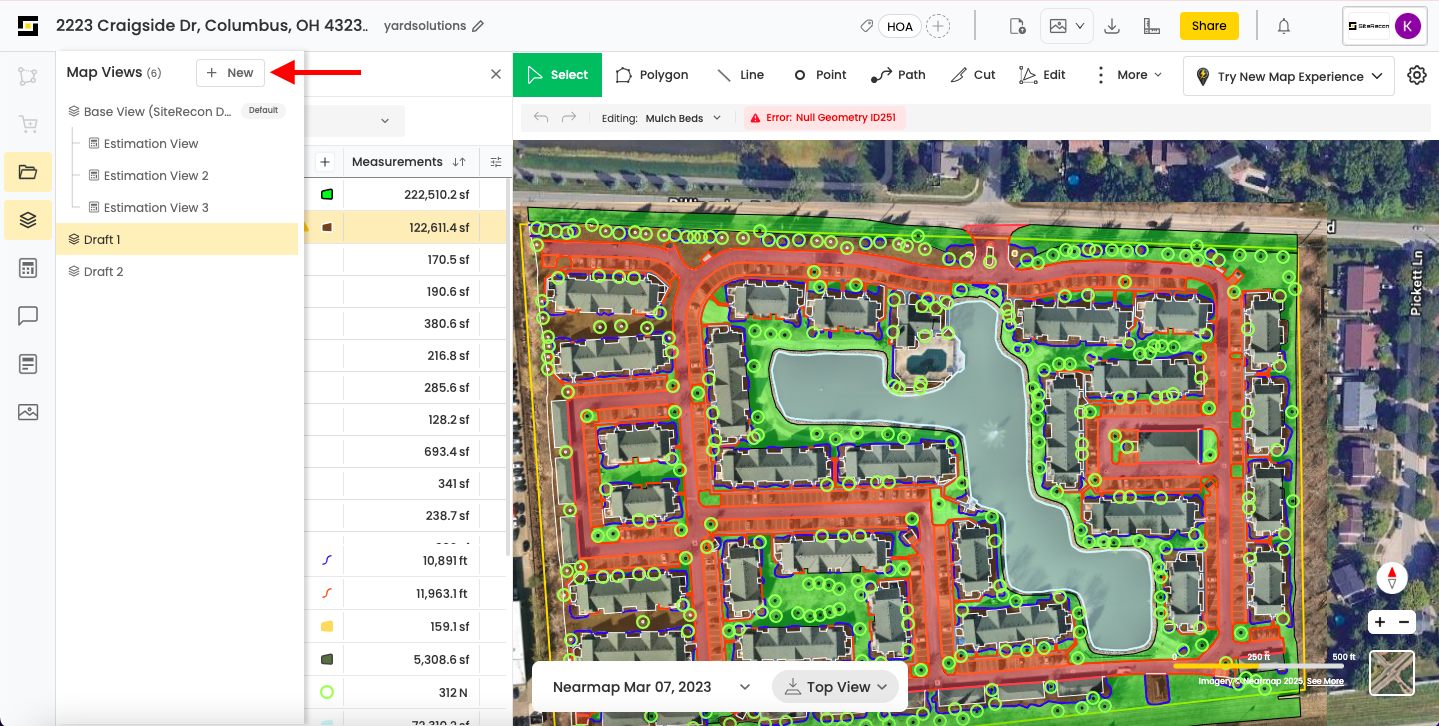
- Go to the **Map Views** tab.
- Click **+ New** to create a new editable view.
#### **Using the Drawing & Selection Tools**
Once you're in an editable view, you can use SiteRecon’s drawing tools to make changes to your property map.
##### **1. Select Tool**
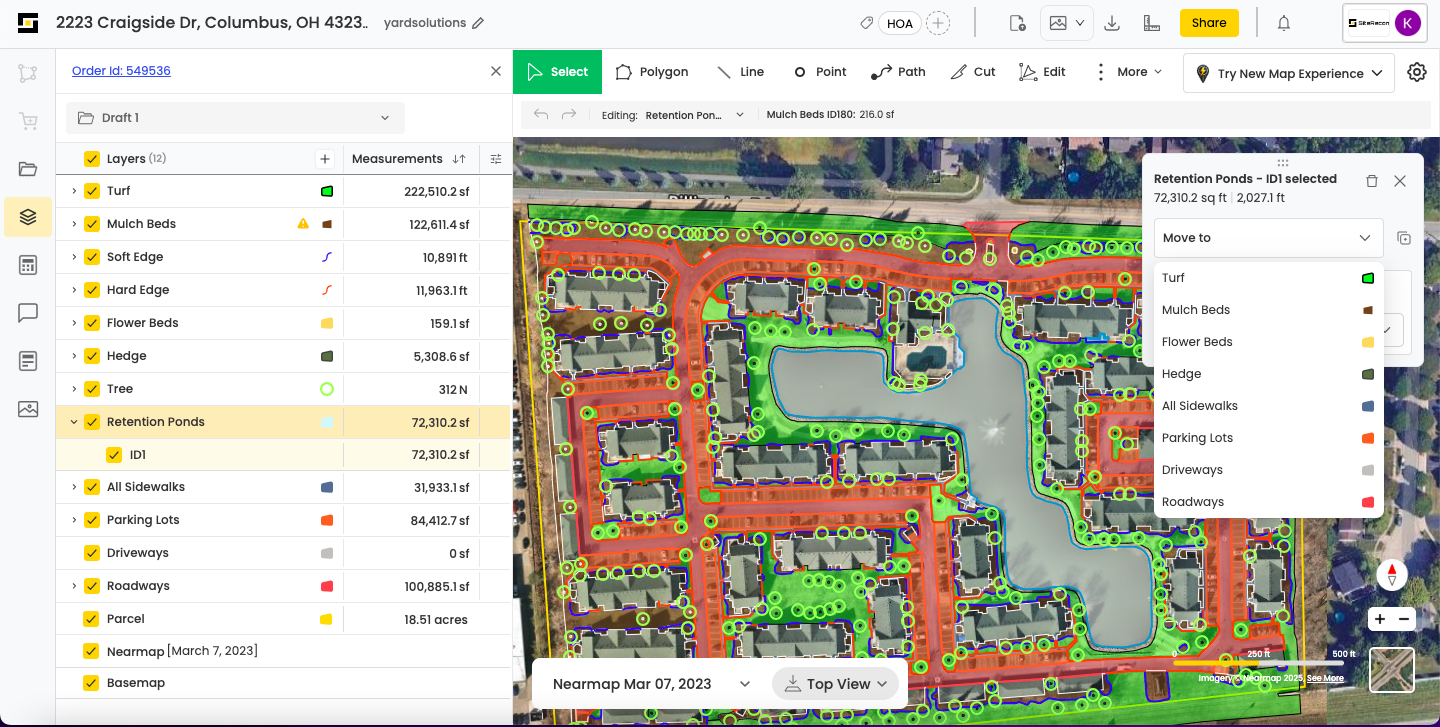
Use the **Select Tool** to choose any feature element (e.g., a Turf ID) and either:
- Assign it a specific service
- Reassign it to a different layer
📌 *Example:* Selecting a **Retention Pond** to move it from one layer to another based on your mapping needs. (Refer to the image below)
#### **2. Draw Tool – Polygon, Line, Point, or Path**
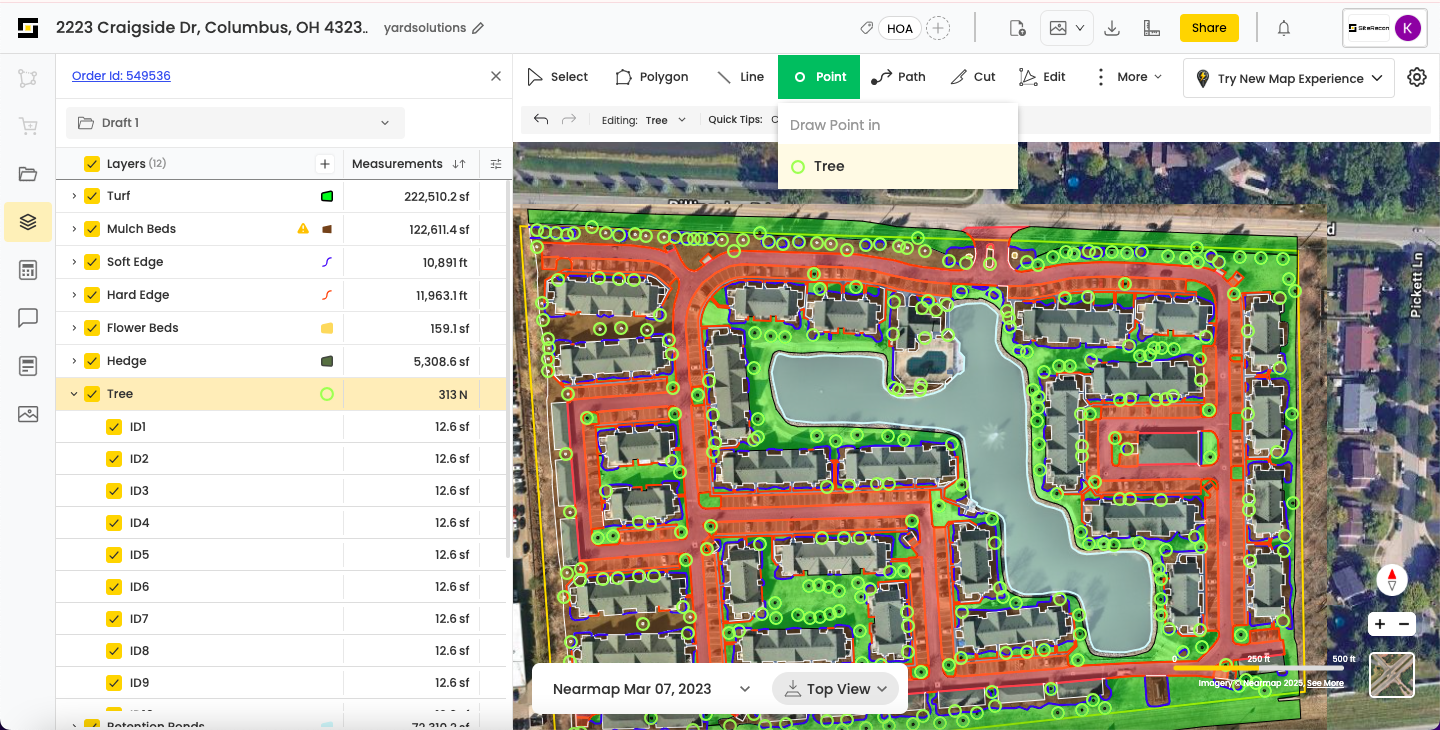
You can add polygons within any existing layers using the draw tool corresponding to the layer type.
📌 *Example:* To add a **Tree**, select the **Point tool**, choose **Tree** from the dropdown, and click anywhere on the map to place it. (Refer to the image below)
#### **3. Edit Tool – Modify Existing Features**
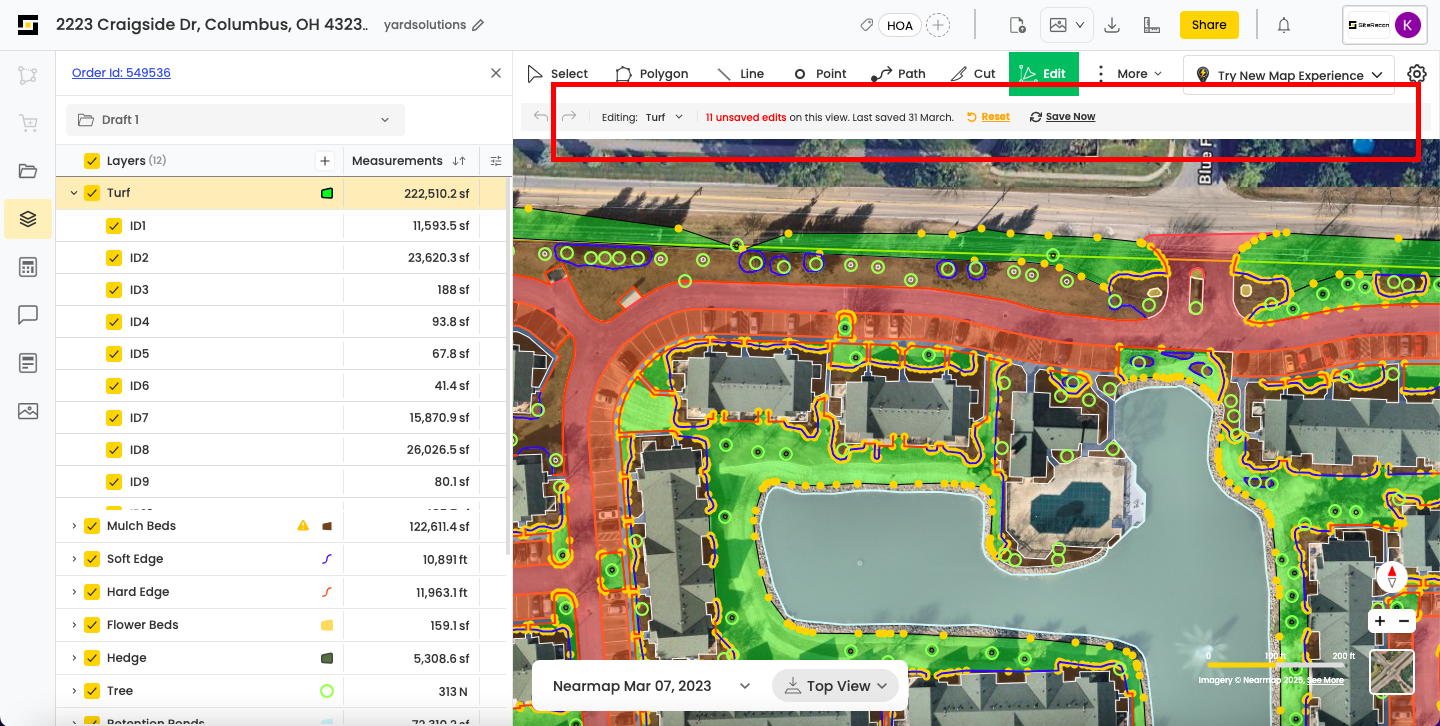
Use the **Edit Tool** to make changes to features you've already added.
> Reminder: Any updates to measurements must be saved manually by clicking “**Save Now**.”
### **Important Notes:**
- You can edit **only one layer at a time**.
- Select the layer either from the **map** or the **layer panel**.
- Tools that don’t apply to the selected layer’s geometry will be **disabled automatically**.
- [Introduction](https://help.siterecon.ai/introduction?hsLang=en-us)
- [Getting started](https://help.siterecon.ai/getting-started?hsLang=en-us)
- [Order Property Measurements](https://help.siterecon.ai/order-property-measurements?hsLang=en-us)
- [Mapping Tools](https://help.siterecon.ai/mapping-tools?hsLang=en-us)
- [Property Map and Data](https://help.siterecon.ai/property-map-and-data?hsLang=en-us)
- [Sharing and Exports](https://help.siterecon.ai/sharing-and-exports?hsLang=en-us)
- [Plato - SiteRecon's Mobile App](https://help.siterecon.ai/plato-siterecons-mobile-app?hsLang=en-us#main-content)
- [Site Audits (SQA) in Plato](https://help.siterecon.ai/plato-siterecons-mobile-app?hsLang=en-us#site-audits-sqa-in-plato)
- [Notes on Plato](https://help.siterecon.ai/plato-siterecons-mobile-app?hsLang=en-us#notes-on-plato)
- [Find Your Property](https://help.siterecon.ai/plato-siterecons-mobile-app?hsLang=en-us#find-your-property)
- [Using Offline](https://help.siterecon.ai/plato-siterecons-mobile-app?hsLang=en-us#using-offline)
- [Property Views](https://help.siterecon.ai/plato-siterecons-mobile-app?hsLang=en-us#property-views)
- [Plato AI Image Generator](https://help.siterecon.ai/plato-siterecons-mobile-app?hsLang=en-us#plato-ai-image-generator)
- [Using Notes on Web Platform](https://help.siterecon.ai/using-notes-on-web-platform?hsLang=en-us)
- [Integrations](https://help.siterecon.ai/integrations?hsLang=en-us)
- [Admin Controls](https://help.siterecon.ai/admin-controls?hsLang=en-us)
- [Estimation](https://help.siterecon.ai/estimation?hsLang=en-us)
- [Product News](https://help.siterecon.ai/product-news?hsLang=en-us)
- [Scout AI](https://help.siterecon.ai/scout-ai?hsLang=en-us)
[](http://siterecon.ai)
[mailto:info@siterecon.ai](mailto:info@siterecon.ai)
Copyright © 2025, SiteRecon Inc.