---
title: How to Use the AI Image Generator in the Plato Mobile App
description: Selling enhancement is now easier with Plato AI Image Generator. Now you can easily create new images and showcase them to the client then and there. No more editing or driving back to the office.
---
[Skip to content](https://help.siterecon.ai/how-to-use-the-ai-image-generator-in-the-plato-mobile-app#main-content)
English - United States
Show submenu for translations

Open main navigation
Close main navigation
- English - United States
Show submenu for translations
- [Contact us](https://meetings.hubspot.com/shubham106/csmproduct)
[Contact us](https://meetings.hubspot.com/shubham106/csmproduct)
Hi, how can we help?
- There are no suggestions because the search field is empty.
1. [SiteRecon University](https://help.siterecon.ai/?hsLang=en-us)
2. [Plato - SiteRecon's Mobile App](https://help.siterecon.ai/plato-siterecons-mobile-app?hsLang=en-us)
3. [Plato AI Image Generator](https://help.siterecon.ai/plato-siterecons-mobile-app?hsLang=en-us#plato-ai-image-generator)
# How to Use the AI Image Generator in the Plato Mobile App
Sell enhancement opportunities in real-time, right at the property.
Instead of pitching ideas and driving back to the office to edit photos for hours, the AI Image Generator lets you show your clients exactly what an enhancement will look like—instantly. Take a photo, describe the change you want to make, and watch the magic happen in seconds.
Whether you're proposing a new flower bed, mulch installation, turf upgrade, or complete landscape redesign, you can now visualize possibilities on the spot and close deals faster.
**Steps to Use the AI Image Generator in Plato**
### **1. Open the Session and Set Up Your Template**
- Open the Plato Mobile App
- Search for the property you wish to pitch enhancements or upgrades to
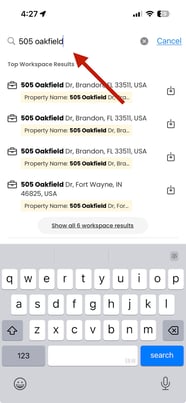
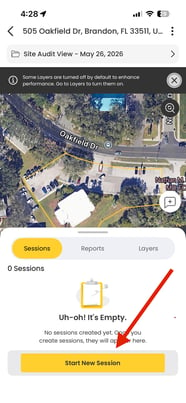
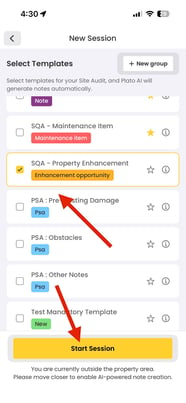
- Tap **Start Session** and select your template (e.g., Maintenance item, Enhancement proposal, Existing damage)
- Fill in the core details: title, description, photos, and location
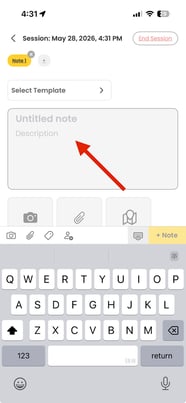
💡 **Pro tip:** Use descriptive titles like "Front Bed Enhancement" or "Turf Upgrade Proposal" so you can reference them later.
### **2. Add the Photo You Want to Transform**
- Upload or take a photo of the area you want to enhance
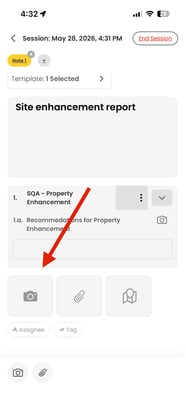
- This becomes your baseline image—the "before" for your client to see
### **3. Access the AI Image Generator**
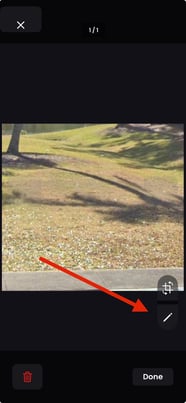
- Look for the **pencil icon** next to the photo. It will open the AI Image Generator.
### **4. Describe Your Enhancement (This Is the Magic Part)**
- In the text field, type exactly what you want to change
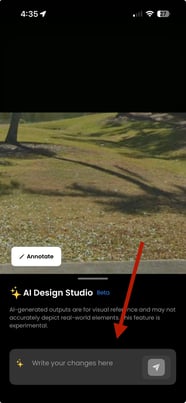
- Be specific. Examples:
- "Add a mulch bed with purple flowers along the front."
- "Plant ornamental grasses and install landscape lighting."
- "Replace dead grass with new sod and add a stone border."
- "Create raised flower beds with perennials."
- "Add a patio area with decorative pavers."
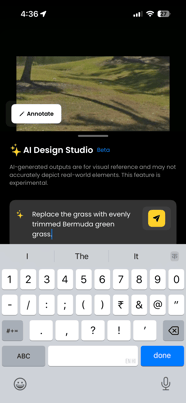
💡 **The more detailed your prompt, the better the result.** Instead of "add flowers," try "add a 10-foot flower bed with pink petunias and white daisies."
### **5. Generate the AI Image**
- Tap **Generate** (or similar button)
- Wait a few seconds while AI works
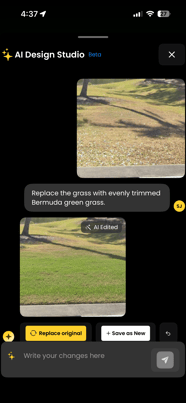
- Your enhanced image appears instantly
### **6. Review and Share With Your Client**
- Look at the generated image—this is your pitch
- Show it directly to your client on your phone
- Discuss the enhancement while it's fresh, with a visual reference
- If they like it, move forward. If they want changes, adjust the prompt and regenerate (takes seconds)
### **7. Save Your Vision (Optional)**
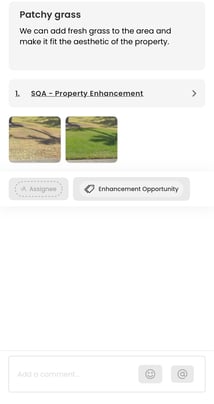
- Save the generated image to your session for future reference
- Attach it to the property record or proposal
- Use it in follow-up emails or quotes
**Why the AI Image Generator Changes Everything**
Before Plato AI Image Generator:
- ❌ Pitch an idea verbally
- ❌ Drive back to the office
- ❌ Spend hours editing photos in Photoshop or similar tools
- ❌ Send the edited image back to the client days later
- ❌ Hope they still remember the conversation
With Plato AI Image Generator:
- ✅ Pitch with a visual in real-time
- ✅ Show multiple options in seconds
- ✅ Get instant feedback while you're still at the property
- ✅ Increase close rates because clients see the vision immediately
- ✅ Spend zero time editing—AI handles it
**Real-World Scenarios**
**Scenario 1: Front Lawn Enhancement** Client mentions their lawn looks tired. Instead of leaving empty-handed, you snap a photo, prompt the AI: *"Add lush green sod and a curved mulch bed with ornamental grasses,"* and show them the result 30 seconds later. They say yes on the spot.
**Scenario 2: Upsell During a Service Visit.** You're doing a maintenance visit and notice bare spots in the landscaping. Generate a quick image showing upgraded flower beds, share it, and turn a $500 maintenance visit into a $5,000 enhancement project.
**Scenario 3: Multiple Options** The client isn't sure what they want. Generate three versions: one with flowers, one with shrubs, and one with hardscape. They pick their favorite in minutes—no back-and-forth emails.
**Tips for Best Results**
- **Use good lighting:** Take photos in natural daylight for clearer AI results
- **Frame the shot:** Include the full area you want to enhance so the AI has context
- **Be descriptive:** Mention plant types, colors, materials, and placement
- **Test variations:** If the first result isn't perfect, tweak your prompt and try again
- **Show the before and after:** Display both images to your client for maximum impact
**The bottom line:** You've just cut hours of photo editing out of your sales process. Use those hours to close more deals and grow your business. That's what Plato is built for.
- [Introduction](https://help.siterecon.ai/introduction?hsLang=en-us)
- [Getting started](https://help.siterecon.ai/getting-started?hsLang=en-us)
- [Order Property Measurements](https://help.siterecon.ai/order-property-measurements?hsLang=en-us)
- [Mapping Tools](https://help.siterecon.ai/mapping-tools?hsLang=en-us)
- [Property Map and Data](https://help.siterecon.ai/property-map-and-data?hsLang=en-us)
- [Sharing and Exports](https://help.siterecon.ai/sharing-and-exports?hsLang=en-us)
- [Plato - SiteRecon's Mobile App](https://help.siterecon.ai/plato-siterecons-mobile-app?hsLang=en-us#main-content)
- [Site Audits (SQA) in Plato](https://help.siterecon.ai/plato-siterecons-mobile-app?hsLang=en-us#site-audits-sqa-in-plato)
- [Notes on Plato](https://help.siterecon.ai/plato-siterecons-mobile-app?hsLang=en-us#notes-on-plato)
- [Find Your Property](https://help.siterecon.ai/plato-siterecons-mobile-app?hsLang=en-us#find-your-property)
- [Using Offline](https://help.siterecon.ai/plato-siterecons-mobile-app?hsLang=en-us#using-offline)
- [Property Views](https://help.siterecon.ai/plato-siterecons-mobile-app?hsLang=en-us#property-views)
- [Plato AI Image Generator](https://help.siterecon.ai/plato-siterecons-mobile-app?hsLang=en-us#plato-ai-image-generator)
- [Using Notes on Web Platform](https://help.siterecon.ai/using-notes-on-web-platform?hsLang=en-us)
- [Integrations](https://help.siterecon.ai/integrations?hsLang=en-us)
- [Admin Controls](https://help.siterecon.ai/admin-controls?hsLang=en-us)
- [Estimation](https://help.siterecon.ai/estimation?hsLang=en-us)
- [Product News](https://help.siterecon.ai/product-news?hsLang=en-us)
- [Scout AI](https://help.siterecon.ai/scout-ai?hsLang=en-us)
[](http://siterecon.ai)
[mailto:info@siterecon.ai](mailto:info@siterecon.ai)
Copyright © 2025, SiteRecon Inc.