---
title: How to create views in Plato Mobile App?
description: Create customized property views in Plato to segment tasks, teams, or note categories visually.
---
[Skip to content](https://help.siterecon.ai/how-do-you-create-views#main-content)
English - United States
Show submenu for translations

Open main navigation
Close main navigation
- English - United States
Show submenu for translations
- [Contact us](https://meetings.hubspot.com/shubham106/csmproduct)
[Contact us](https://meetings.hubspot.com/shubham106/csmproduct)
Hi, how can we help?
- There are no suggestions because the search field is empty.
1. [SiteRecon University](https://help.siterecon.ai/?hsLang=en-us)
2. [Plato - SiteRecon's Mobile App](https://help.siterecon.ai/plato-siterecons-mobile-app?hsLang=en-us)
3. [Property Views](https://help.siterecon.ai/plato-siterecons-mobile-app?hsLang=en-us#property-views)
# How to create views in Plato Mobile App?
## Organize your property map for specific use cases, site visits, or stakeholders.
Creating a **new view** in Plato allows you to separate information without cluttering your main map. Whether you're preparing for a site audit, a client presentation, or internal task planning, a view gives you a focused space to work and collaborate.
#### **Steps to Create a New View**
##### **Step 1: Click ‘Add Map View’**
- Go to the property map and tap **Add Map View**
- Give your view a **name** that helps you recognize its purpose
For example: *Client Review – Q2*, *Enhancement Audit*, or *Pre-Snow Walkthrough*
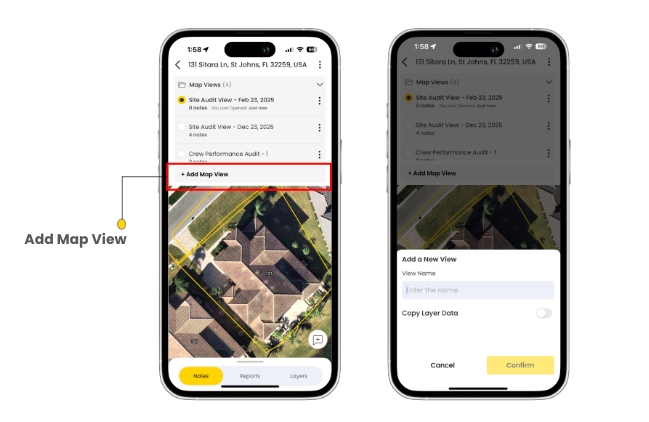
##### **Step 2: Choose to Copy Layer Data (Optional)**
- If you want to start your new view with the **same layers as an existing view**, toggle on **Copy Layer Data**
- This saves you time and helps you build on previous work
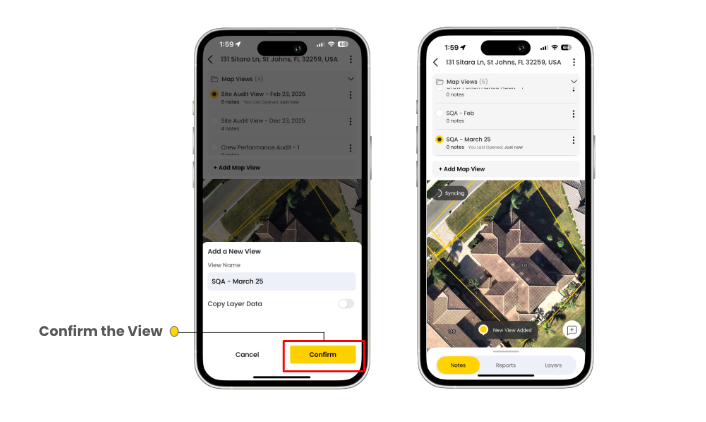
##### **Step 3: Click ‘Confirm’ to Finalize**
- Once you're happy with the name and setup, click **Confirm**
- Your new view is now ready to use. You can add notes, assign tasks, or export reports from this specific map view
#### **How Views Are Helpful**
- Keep internal notes separate from client-facing documentation
- Prepare clean audits for specific timeframes or service types
- Help teams stay focused by showing only what’s relevant to them
Views give you the flexibility to work smarter without overwriting or cluttering your main property map.
- [Introduction](https://help.siterecon.ai/introduction?hsLang=en-us)
- [Getting started](https://help.siterecon.ai/getting-started?hsLang=en-us)
- [Order Property Measurements](https://help.siterecon.ai/order-property-measurements?hsLang=en-us)
- [Mapping Tools](https://help.siterecon.ai/mapping-tools?hsLang=en-us)
- [Property Map and Data](https://help.siterecon.ai/property-map-and-data?hsLang=en-us)
- [Sharing and Exports](https://help.siterecon.ai/sharing-and-exports?hsLang=en-us)
- [Plato - SiteRecon's Mobile App](https://help.siterecon.ai/plato-siterecons-mobile-app?hsLang=en-us#main-content)
- [Site Audits (SQA) in Plato](https://help.siterecon.ai/plato-siterecons-mobile-app?hsLang=en-us#site-audits-sqa-in-plato)
- [Notes on Plato](https://help.siterecon.ai/plato-siterecons-mobile-app?hsLang=en-us#notes-on-plato)
- [Find Your Property](https://help.siterecon.ai/plato-siterecons-mobile-app?hsLang=en-us#find-your-property)
- [Using Offline](https://help.siterecon.ai/plato-siterecons-mobile-app?hsLang=en-us#using-offline)
- [Property Views](https://help.siterecon.ai/plato-siterecons-mobile-app?hsLang=en-us#property-views)
- [Plato AI Image Generator](https://help.siterecon.ai/plato-siterecons-mobile-app?hsLang=en-us#plato-ai-image-generator)
- [Using Notes on Web Platform](https://help.siterecon.ai/using-notes-on-web-platform?hsLang=en-us)
- [Integrations](https://help.siterecon.ai/integrations?hsLang=en-us)
- [Admin Controls](https://help.siterecon.ai/admin-controls?hsLang=en-us)
- [Estimation](https://help.siterecon.ai/estimation?hsLang=en-us)
- [Product News](https://help.siterecon.ai/product-news?hsLang=en-us)
- [Scout AI](https://help.siterecon.ai/scout-ai?hsLang=en-us)
[](http://siterecon.ai)
[mailto:info@siterecon.ai](mailto:info@siterecon.ai)
Copyright © 2025, SiteRecon Inc.