---
title: Basics of the editing tools
description: Learn the basics of SiteRecon's editing tools—move, reshape, split, and label site features for accurate and customized maps.
---
[Skip to content](https://help.siterecon.ai/basics-of-the-editing-tools#main-content)
English - United States
Show submenu for translations

Open main navigation
Close main navigation
- English - United States
Show submenu for translations
- [Contact us](https://meetings.hubspot.com/shubham106/csmproduct)
[Contact us](https://meetings.hubspot.com/shubham106/csmproduct)
Hi, how can we help?
- There are no suggestions because the search field is empty.
1. [SiteRecon University](https://help.siterecon.ai/?hsLang=en-us)
2. [Mapping Tools](https://help.siterecon.ai/mapping-tools?hsLang=en-us)
# Basics of the editing tools
## Understand the core editing tools in SiteRecon and how to use them to adjust map layers with precision.
As a user, you can update or refine SiteRecon outputs using the **Editing Tools**. These tools allow you to **draw, modify, cut, and delete** individual elements within a feature layer—whether it’s an area, line, or point geometry.
Once an order is approved, the editing tools become available, allowing you to maintain accurate and up-to-date site maps.
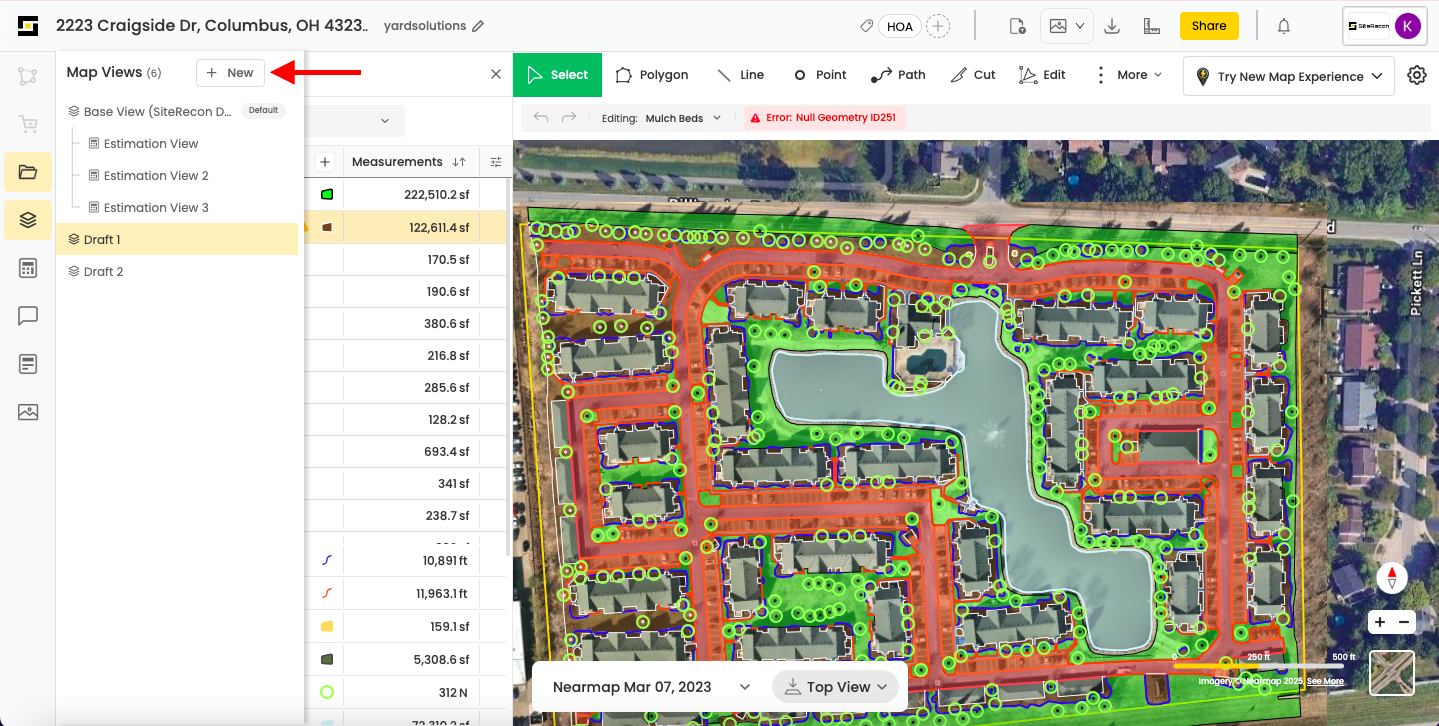
To begin editing, you’ll first need to create a new **draft view**, as the Base View (SiteRecon Data) is not editable.
#### **Adding a "New Draft View."**
#### **Select Tool**
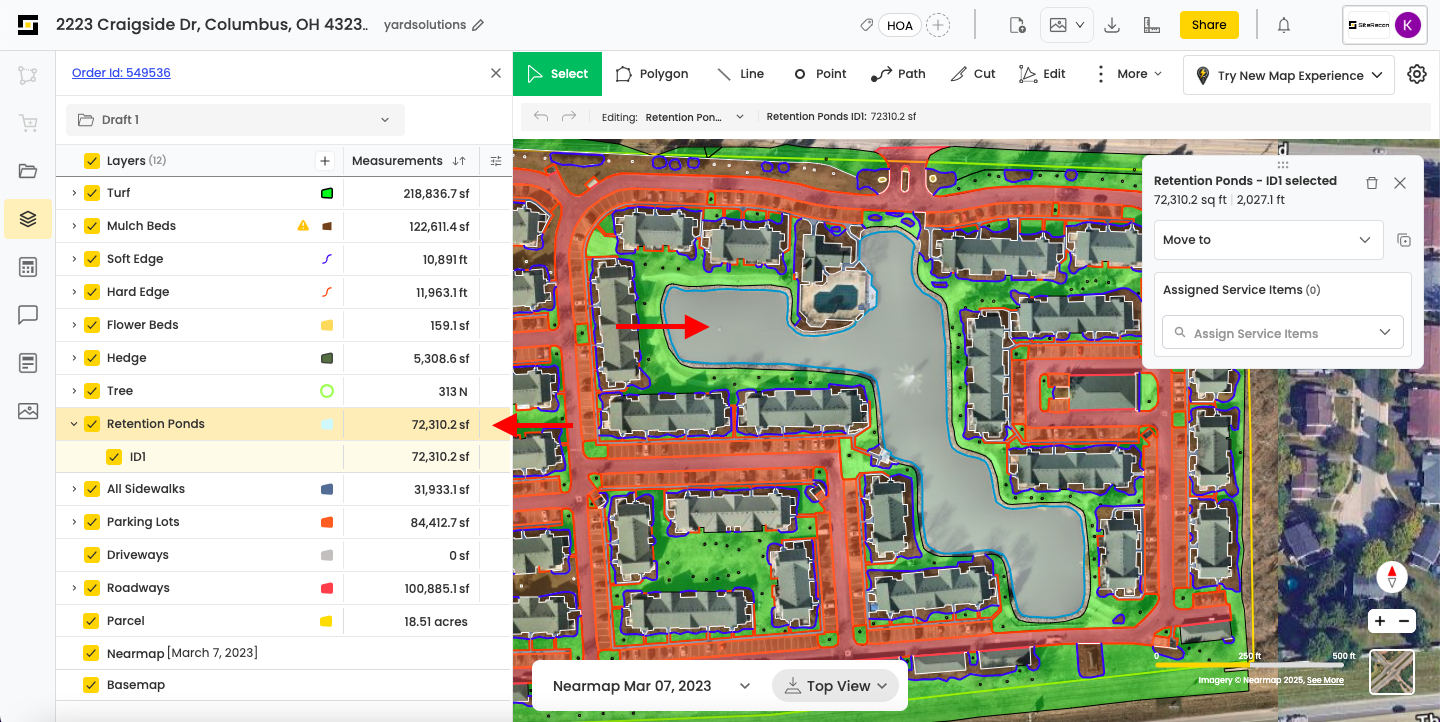
The **Select Tool** in the toolbar allows you to choose and manage features on the map while in edit mode.
##### **Single Select**
- Click the **Select Tool** icon.
- Then, click on any single feature layer on the map to select it.
##### **Multi-Select**
- Hold **Ctrl** (or **⌘** on Mac) and click on multiple features to select them one by one.
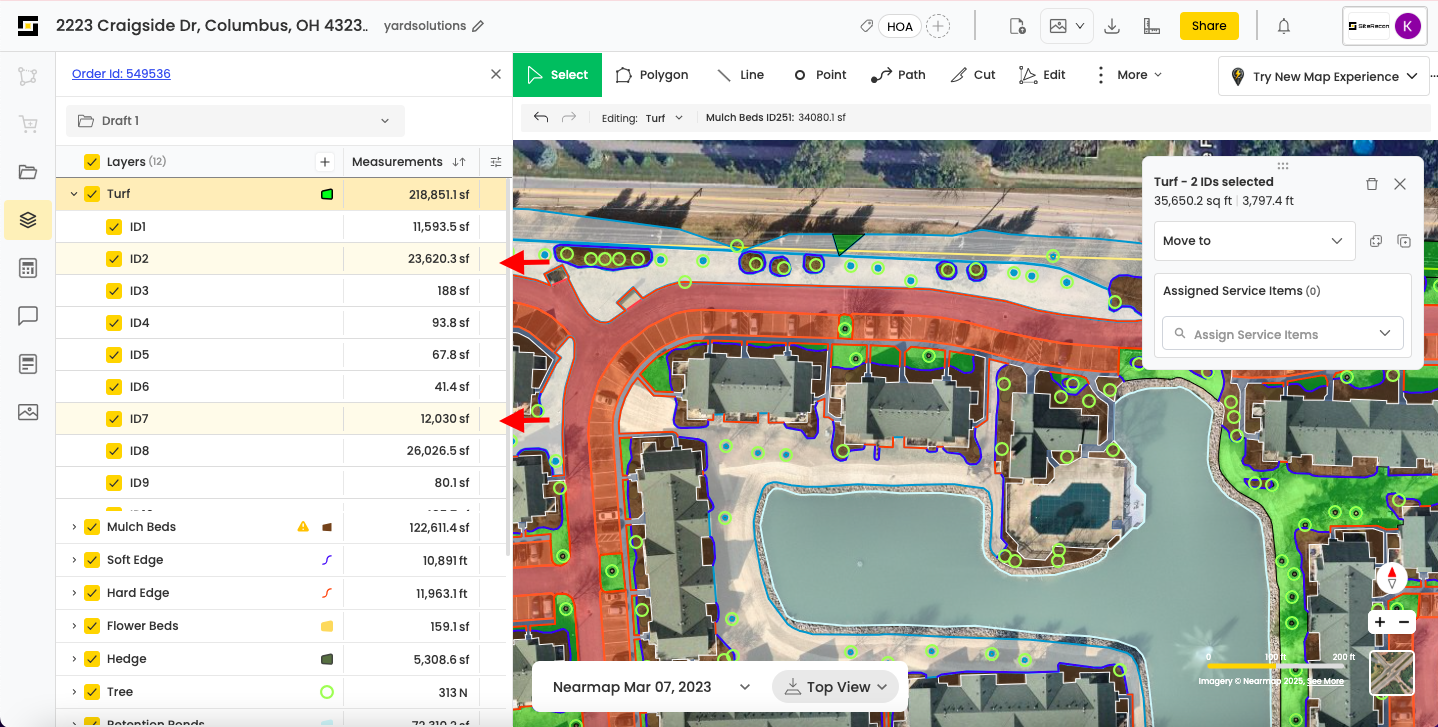
Alternatively, hold **Ctrl** and **drag a rectangle** across the map to select multiple polygons at once within the active layer.
#### **Draw Tool**
The **Draw Tool** allows you to manually create new features on the map. It’s ideal when you need to add elements that weren’t captured during the initial measurement.
##### **How to Use the Draw Tool:**
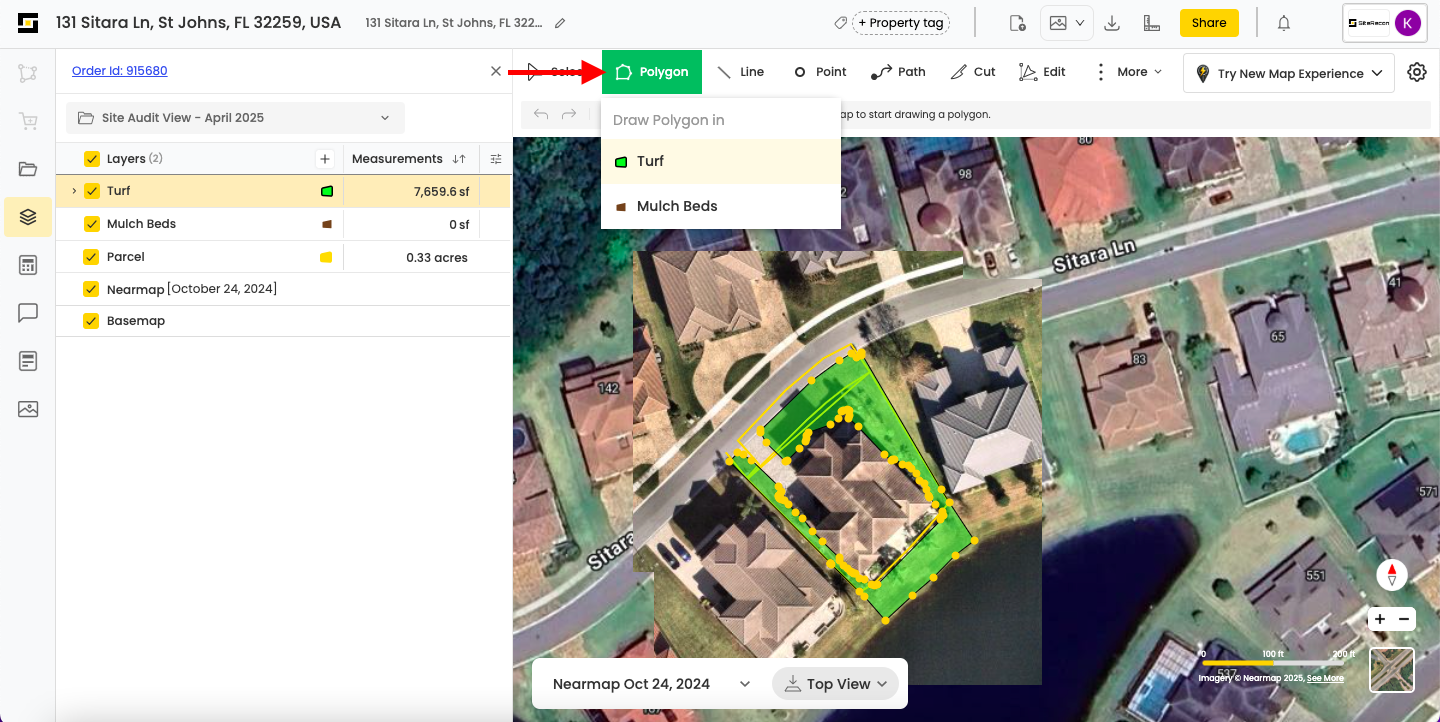
1. **Select the feature type** you want to add (e.g., Turf, Hard Edge, Tree).
2. Choose the appropriate **geometry tool** based on the feature:
- **Polygon** for area-based features like Turf
- **Line** for linear features like Hard Edges
- **Point** for single-location features like Trees
3. **Draw** the feature directly on the desired section of the map.
4. Once drawn, a **Feature Layer ID** will appear in the measurement panel, confirming it’s been added.
---
#### **Edit Tool**
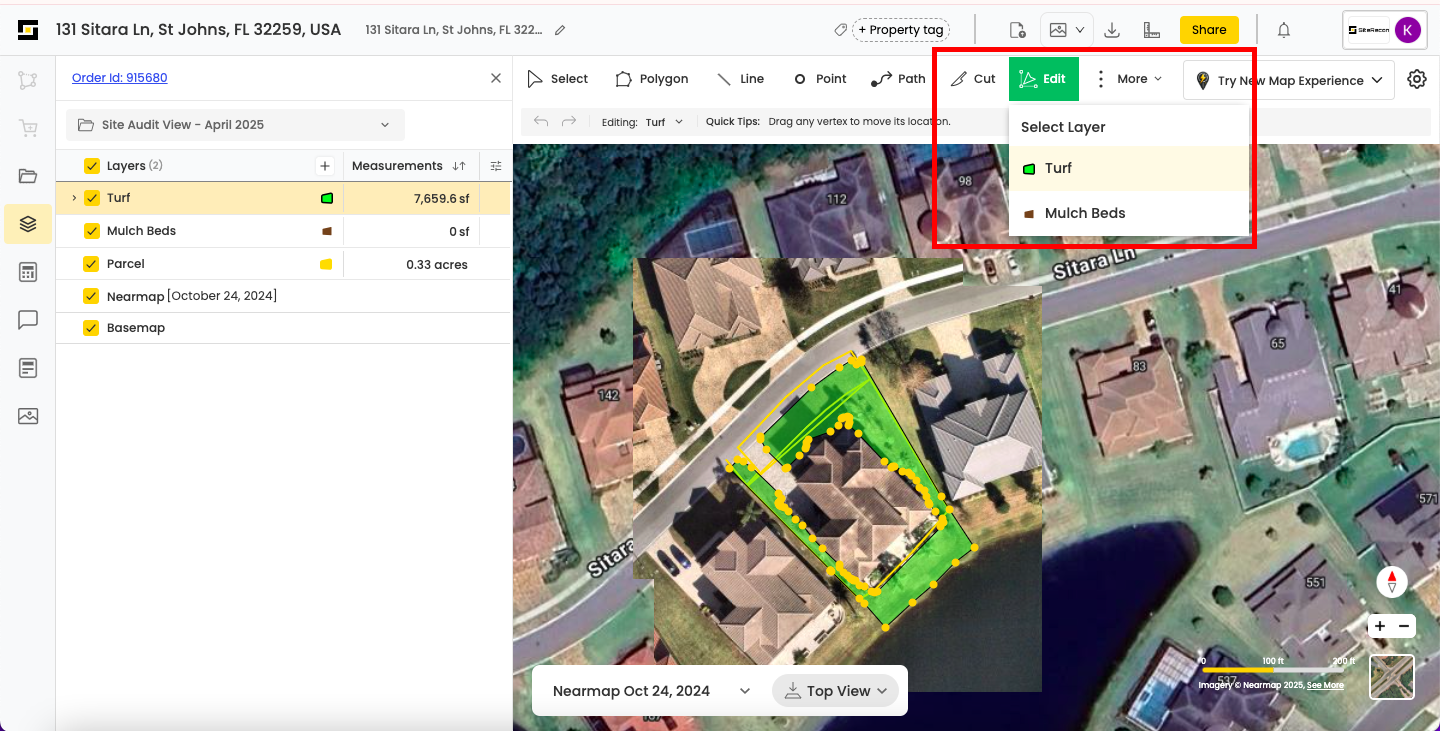
The **Edit Tool** allows you to modify existing features on the map by adjusting their shape or structure.
##### **How to Use the Edit Tool:**
1. Select the **Edit Tool** from the tools panel.
2. Once active, click on the feature layer you want to edit.
3. Modify the shape by:
- **Dragging existing vertices** to new positions
- **Adding new vertices** by clicking on the polygon’s edge, then dragging to reshape it
4. All changes will immediately reflect on the map and in the measurement data.
---
#### **CUT TOOL**
The **Cut Tool** allows you to remove or divide sections of existing polygons. SiteRecon offers **three cutting methods** to help you get the desired output: **Cut**, **Line Split**, and **Lasso Split**.
##### **1. Cut**
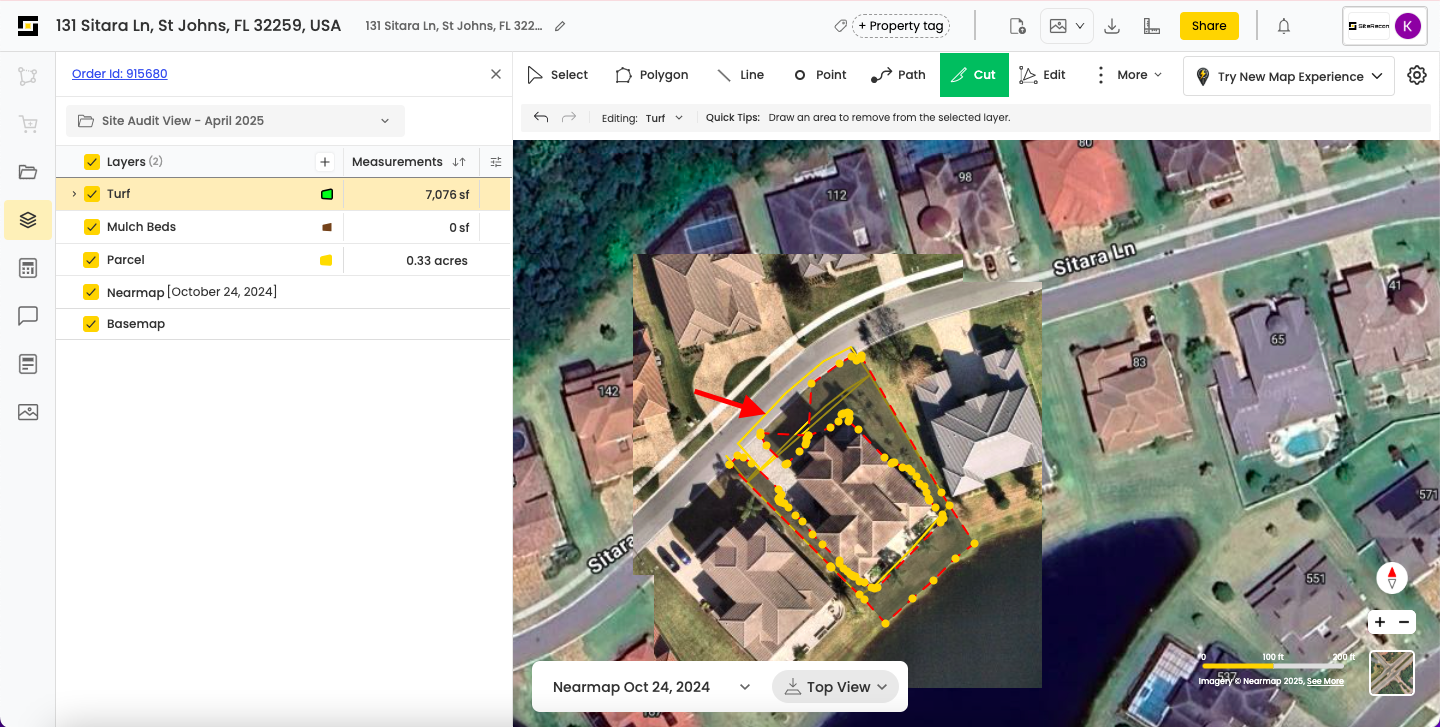
Use this tool to remove unwanted parts of a polygon.
**How to use:**
1. Select the **Cut Tool** from the tools panel.
2. Draw a polygon around the area you want to remove.
3. Once the shape is completed, the selected portion will be cut out from the existing polygon.
##### **2. Line Split**
Use this tool to divide a single polygon into multiple parts by drawing a straight line across it.
**How to use:**
1. Select the **Line Split Tool**.
2. Draw a line that crosses the polygon completely.
3. Once completed, the polygon will split into two separate features with unique IDs.
> Note: The line must cross over the polygon from edge to edge for the split to work.
##### **3. Lasso Split**
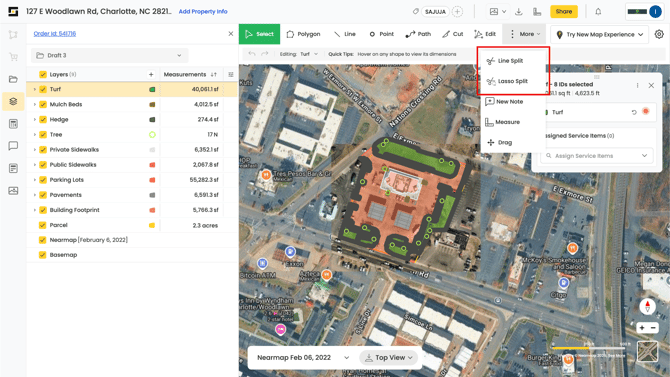
The **Lasso Split Tool** lets you carve out a polygon inside a larger polygon—ideal for defining distinct sections within large areas.
**How to use:**
1. Select the **Lasso Split Tool** from the cutting tool section.
2. Draw a custom shape (lasso) over the area you want to separate.
3. Once drawn, the selected portion will become a new polygon with its own feature ID.
4. You can also use the **"Move To"** option to transfer the cut-out area into a different feature or layer
(e.g., move from Turf to Mulch Beds).
#### **Move To Tool**
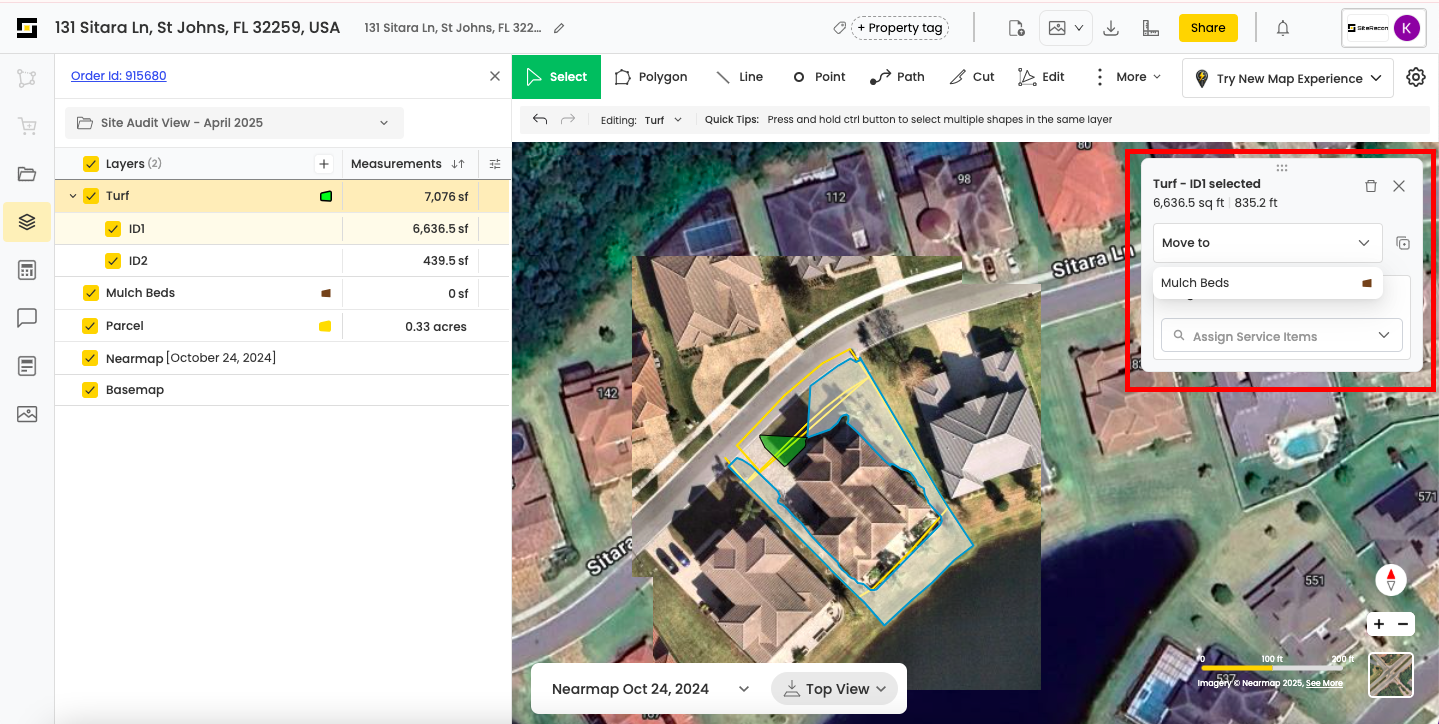
The **Move To** tool allows you to transfer a selected layer or feature element from one feature category to another—helpful for reorganizing data or correcting feature assignments.
##### **How to Use:**
1. **Select** the feature or layer you want to move.
2. In the **layer box**, click the dropdown next to **“Move To.”**
3. Choose the **target feature** you want to move the selected element into.
> This tool is especially useful after splitting or editing features where reclassification is needed (e.g., moving a section from Turf to Mulch Beds).
---
- [Introduction](https://help.siterecon.ai/introduction?hsLang=en-us)
- [Getting started](https://help.siterecon.ai/getting-started?hsLang=en-us)
- [Order Property Measurements](https://help.siterecon.ai/order-property-measurements?hsLang=en-us)
- [Mapping Tools](https://help.siterecon.ai/mapping-tools?hsLang=en-us)
- [Property Map and Data](https://help.siterecon.ai/property-map-and-data?hsLang=en-us)
- [Sharing and Exports](https://help.siterecon.ai/sharing-and-exports?hsLang=en-us)
- [Plato - SiteRecon's Mobile App](https://help.siterecon.ai/plato-siterecons-mobile-app?hsLang=en-us#main-content)
- [Site Audits (SQA) in Plato](https://help.siterecon.ai/plato-siterecons-mobile-app?hsLang=en-us#site-audits-sqa-in-plato)
- [Notes on Plato](https://help.siterecon.ai/plato-siterecons-mobile-app?hsLang=en-us#notes-on-plato)
- [Find Your Property](https://help.siterecon.ai/plato-siterecons-mobile-app?hsLang=en-us#find-your-property)
- [Using Offline](https://help.siterecon.ai/plato-siterecons-mobile-app?hsLang=en-us#using-offline)
- [Property Views](https://help.siterecon.ai/plato-siterecons-mobile-app?hsLang=en-us#property-views)
- [Plato AI Image Generator](https://help.siterecon.ai/plato-siterecons-mobile-app?hsLang=en-us#plato-ai-image-generator)
- [Using Notes on Web Platform](https://help.siterecon.ai/using-notes-on-web-platform?hsLang=en-us)
- [Integrations](https://help.siterecon.ai/integrations?hsLang=en-us)
- [Admin Controls](https://help.siterecon.ai/admin-controls?hsLang=en-us)
- [Estimation](https://help.siterecon.ai/estimation?hsLang=en-us)
- [Product News](https://help.siterecon.ai/product-news?hsLang=en-us)
- [Scout AI](https://help.siterecon.ai/scout-ai?hsLang=en-us)
[](http://siterecon.ai)
[mailto:info@siterecon.ai](mailto:info@siterecon.ai)
Copyright © 2025, SiteRecon Inc.